BMW Gesture Control is a smart technology that lets drivers control certain infotainment functions with simple hand movements. A small sensor near the roof detects gestures made in front of the center display. You can adjust the volume, accept calls, or use selected features without touching the screen.
This feature can make driving feel more modern and convenient. However, many owners do not know which gestures are supported or how to use them correctly. A small movement in the right place can help you control the system while keeping your attention on the road.
This guide explains how BMW Gesture Control works and how to activate it. It also covers supported gestures, settings, compatible BMW models, and common sensor problems. You will also learn whether the feature is standard and if it can be added to an older BMW.
What Is BMW Gesture Control?
BMW Gesture Control is a feature that lets you operate certain functions with hand movements. A camera or sensor near the roof watches the area in front of the center screen. It recognizes specific gestures and sends commands to the infotainment system.
You can use gestures to change the volume, accept or reject calls, and control selected menu options. For example, rotating your finger can raise or lower the sound. Pointing or swiping may activate other supported features.
The system is designed to make basic controls quicker and easier. It can reduce the need to touch the screen while driving. However, available gestures and functions may vary by BMW model and software version.
How Does BMW Gesture Control Work?
BMW Gesture Control uses a small camera or sensor near the front roof console. It watches the area above the center console. The system recognizes specific hand movements and turns them into commands.
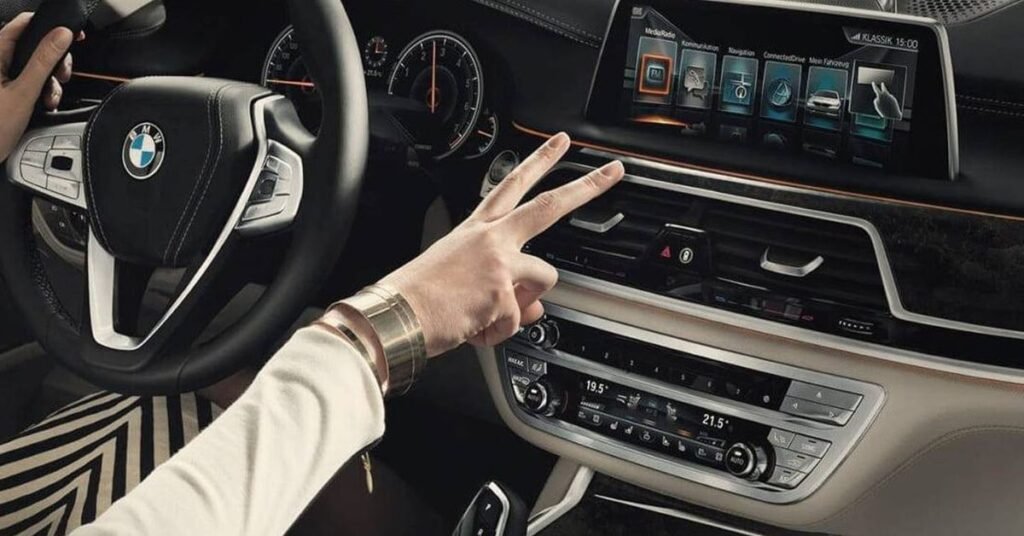
The driver makes a supported gesture in front of the infotainment screen. For example, moving a finger in a circle can adjust the volume. Swiping or pointing may control other functions, depending on the vehicle and software version.
The system works best when the hand is inside the sensor’s detection area. Gestures should be clear and steady. Poor lighting, fast movements, or objects blocking the sensor may affect its accuracy.
BMW Gesture Control: How to Use It
Start the vehicle and open the infotainment system. Keep your hand near the center display. Make sure the gesture control feature is turned on in the settings.
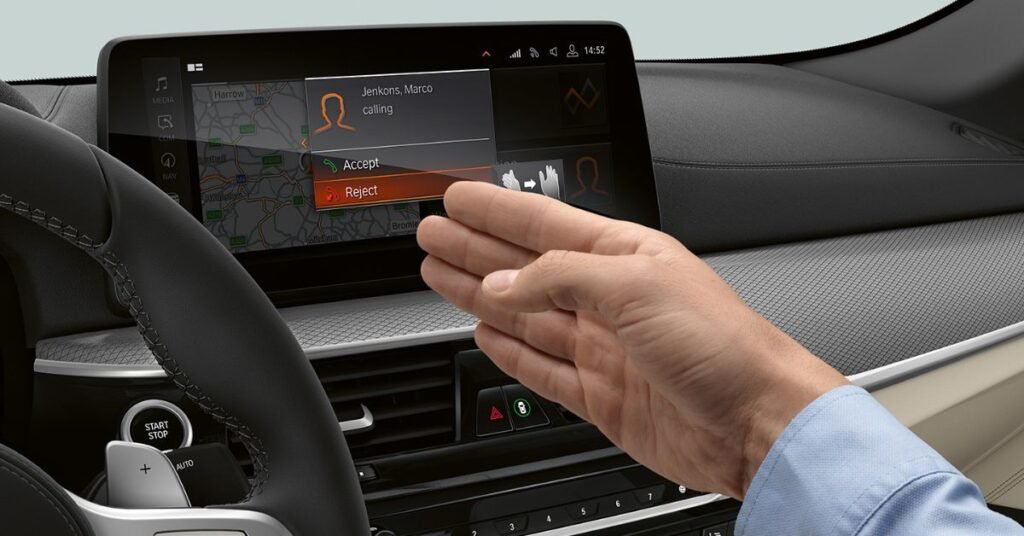
Use slow and clear hand movements. Rotate your index finger to adjust the volume. Swipe your hand or point with two fingers to use other supported functions.
Keep your hand inside the sensor’s detection area. Avoid making very fast or unclear movements. Available gestures may differ by BMW model and software version.
Overview of Supported Gestures
BMW Gesture Control recognizes several simple hand movements. These gestures can control selected infotainment functions without touching the screen. The exact options may vary by BMW model, production year, and software version.
Most gestures are made above the center console and in front of the display. Move your hand slowly and clearly so the camera can detect it. The table below explains some common BMW gestures and their usual functions.
| Supported Gesture | How to Make the Gesture | Common Function |
| Circular motion clockwise | Move your index finger in a clockwise circle | Increase the audio volume |
| Circular motion counterclockwise | Move your index finger in a counterclockwise circle | Decrease the audio volume |
| Two-finger pointing gesture | Point two fingers toward the center of the display | Activate an assigned shortcut |
| Swipe to the right | Move your open hand from left to right | Accept a phone call or move through a menu |
| Swipe to the left | Move your open hand from right to left | Reject a call or return to the previous option |
| Pinching gesture | Bring your thumb and index finger together | Select or confirm a supported option |
| Open-hand movement | Move an open hand across the detection area | Close a message or control a selected feature |
| Forward pointing gesture | Point toward the screen for a short moment | Choose a displayed item |
| Custom gesture | Perform the gesture linked to a personal shortcut | Open navigation, change media, or access another selected function |
How to Enable, Disable, and Customize Gesture Control
Open the vehicle settings on the BMW infotainment screen. Select the section for displays, controls, or gesture control. Turn the feature on by checking the gesture control option.
To disable it, return to the same settings menu. Remove the checkmark or switch the feature off. This can help if the system reacts to unwanted hand movements.
Some BMW models also allow you to customize certain gestures. You may assign a shortcut to open navigation, change media, or use another function. Menu names and available options can vary by model and software version.
How to Access BMW Gesture Control Settings
Start the vehicle and open the main menu on the infotainment screen. Select Car or My Vehicle, depending on the BMW system. Then open the settings or control options.
Look for a section called Gesture Control, Displays, or General Settings. Select it to view the available options. You can switch gesture control on or off from this menu.
Some models also show a list of supported gestures and custom functions. You may change the action linked to a programmable gesture. The menu names can differ by model year and iDrive version.
How to Activate BMW Gesture Control
Start your BMW and open the main menu on the infotainment screen. Select Car or My Vehicle. Then open the settings menu.
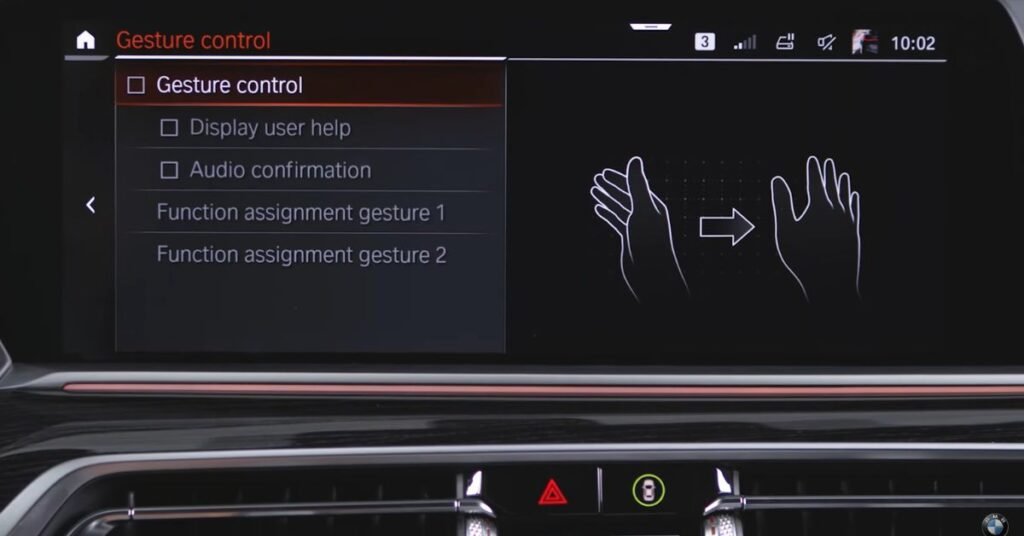
Find the Gesture Control option. It may appear under General Settings, Displays, or Control Settings. Select the box or switch to turn the feature on.
After activation, place your hand near the center display. Make a clear supported gesture to test the system. Check the owner’s manual if the option does not appear in your BMW.
Troubleshooting BMW Gesture Control Sensor Precision
Gesture Control may not respond if your hand is outside the detection area. Keep your hand near the center display. Make each movement slowly and clearly.
Clean the camera or sensor area with a soft cloth. Remove any objects that may block its view. Very bright sunlight or poor cabin lighting can also affect recognition.
Restart the infotainment system if the problem continues. Check that Gesture Control is enabled in the settings. A BMW service center may need to inspect the system if the sensor still works poorly.
What Cars Come with BMW Gesture Control?
BMW Gesture Control is available in selected BMW cars. Common examples include certain versions of the BMW 5 Series, i5, 7 Series, and i7. Some BMW X models may also offer gesture-based controls.
Models that may include this technology are:
- Selected BMW 5 Series and BMW i5 models
- Selected BMW 7 Series and BMW i7 models
- Certain BMW X models
- Some older BMWs equipped with Operating System 7
The feature list can change by country, model year, trim, and equipment package. Always check the car’s original option list or owner’s manual before buying.
Is BMW Gesture Control Standard?
BMW Gesture Control is not standard on every BMW. It is available only on selected models and equipment packages. Some vehicles may offer it as an optional feature.
Availability depends on the model, production year, market, and iDrive system. Even two versions of the same BMW model may have different features. BMW also notes that feature availability can depend on installed options and software.
Check the vehicle’s settings, owner’s manual, or original equipment list to confirm it. You can also ask a BMW dealer to check the car through its VIN. This is especially helpful when buying a used BMW.
How to Retrofit BMW Gesture Control
Retrofitting BMW Gesture Control is more complex than installing a simple software update. The original system uses a camera fitted in the roof area near the rear-view mirror. This camera detects hand movements made near the center display.
The retrofit may require a compatible roof control unit, gesture camera, wiring, infotainment hardware, and vehicle coding. The required parts can differ by BMW model and production year. Not every BMW supports the system, even when similar parts can be installed.
Ask a BMW specialist to check the vehicle identification number before buying any parts. The specialist should confirm hardware and software compatibility. An incorrect installation may cause faults or leave the feature unable to work properly.
Conclusion
BMW Gesture Control makes it easier to control selected features with simple hand movements. It can adjust the volume, manage calls, and open assigned shortcuts. The system feels modern and can reduce the need to touch the screen while driving.
However, the feature is not available in every BMW. Its functions can also vary by model, year, and iDrive version. Check your vehicle settings or owner’s manual to confirm availability and learn the correct gestures.
FAQs
1. What is BMW Gesture Control?
BMW Gesture Control lets you operate selected infotainment features with simple hand movements. It uses a sensor near the roof console to recognize supported gestures.
2. How do I turn on BMW Gesture Control?
Open the vehicle settings in the iDrive system and find the Gesture Control option. Select the checkbox or switch to activate it.
3. Which BMW models have Gesture Control?
The feature is available in selected BMW models, trims, and equipment packages. Availability depends on the model year, market, and iDrive version.
4. Why is my BMW Gesture Control not working?
The sensor may not recognize movements that are too fast or outside its detection area. Check the settings, clean the sensor area, and use slow, clear gestures.
5. Can BMW Gesture Control be retrofitted?
Retrofitting may be possible in some compatible BMWs. However, it can require a camera, wiring, control units, coding, and professional installation.